How to Choose the Best Mobile Workstation
Choosing a Mobile Workstation starts with the work you need it to handle, not a flashy specification sheet. A 3D artist may rely on a professional graphics processor, while an engineer running simulations may need more memory and sustained processing power. Video editors should also consider screen accuracy, storage speed, and ports for external drives. Small details matter.
Look beyond peak performance. Check independent reviews for thermal behavior, fan noise, and performance during long workloads; a fast processor can slow down when a compact chassis gets hot. Compare the display’s resolution and color coverage with your actual projects, and confirm that memory or storage can be upgraded if your needs change. Battery life deserves a realistic check, too, since demanding applications can drain it quickly. No single model is best for everyone.
Before buying, list your essential software, typical file sizes, preferred screen size, and daily travel needs. Then compare those requirements against the manufacturer’s configuration options, warranty terms, and support resources. A lighter system may be easier to carry, but it might offer fewer ports or less room for cooling. Those compromises are easy to miss in a store. I have seen buyers focus on processor names and overlook the keyboard, charger weight, or repair options; that choice can feel less convincing after months of use. This guide explains how to balance performance, portability, reliability, and cost, so your Mobile Workstation fits real work rather than an idealized spec sheet.
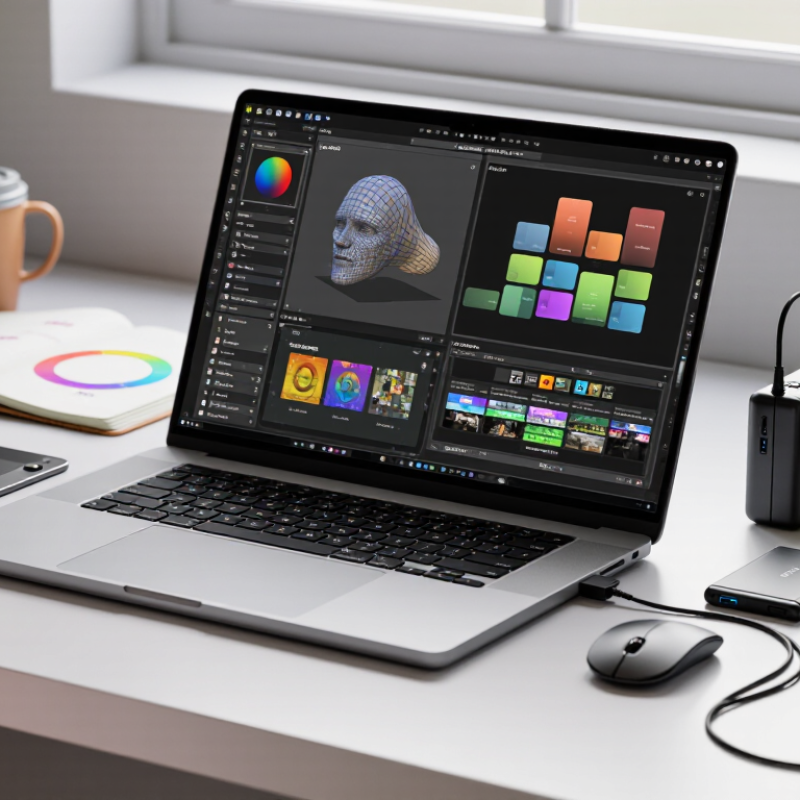
Define Workload Requirements with ISV-Certified Software and Performance Needs
Choose a mobile workstation by starting with the software you use, not a processor label. Check the application maker’s certification list for the exact model, graphics option, driver, and software version. Certification reduces compatibility risk, but it does not promise faster work in every project. Verify the configuration against your own files.
Then define the workload. A designer rotating dense 3D assemblies needs sustained graphics performance; an engineer running simulation also needs memory and processor capacity. SPECviewperf 2020, from the Standard Performance Evaluation Corporation, includes eight professional graphics viewsets, offering a repeatable way to compare workstation performance. Treat benchmark scores as clues, not predictions: project size, drivers, and cooling can change real results. Test a representative file if possible. That matters.
Record practical limits, too: application load time, viewport smoothness, render time, and fan noise during a long session. Check memory use while opening your largest model, not just a small sample. A certification may cover one configuration but not another with a different graphics option. I would not assume that a newer component is automatically the better choice. The right fit depends on your software versions, typical deadlines, and tolerance for heat, weight, and battery drain.
Compare CPU and GPU Options by Core Counts, VRAM, and Workload
How to Choose the Best Mobile Workstation
A mobile workstation should match the work you actually do, not just boast impressive specifications. For CPU-heavy tasks, such as compiling large projects or running engineering simulations, compare core counts and sustained performance. More cores help. But some design tools rely more on a few fast cores than many slower ones. Check recommended specifications, then look for independent tests using similar workloads. A laptop that performs well for short bursts may slow during a long render as heat builds. That detail is easy to miss on a spec sheet.
GPU choice depends on both processing needs and memory. Real-time 3D scenes, visual effects, and data-heavy models can benefit from a capable GPU with ample VRAM. If a project exceeds available video memory, performance may suffer or the workflow may become impractical. A larger VRAM figure is not a complete measure of speed, though; GPU architecture, power limits, and cooling also matter. Compare tests involving files like yours, whether that means a detailed assembly, a scene with high-resolution textures, or a large visualization. This is an imperfect shortcut, but workload-specific evidence is usually more useful than a headline core count. Before buying, leave some capacity for future projects, while avoiding upgrades you cannot realistically use.
Check Display Quality Against 100% DCI-P3 and Delta E < 2 Targets
A mobile workstation’s display should reproduce color reliably, not merely look vivid in a shop. For design, photography, and video work, aim for full DCI-P3 coverage and an average Delta E below 2. Digital Cinema Initiatives defines the DCI-P3 color space for cinema workflows; it covers a wider range of colors than sRGB. But “100%” needs context: check whether the specification means gamut coverage, not just color volume. CIE colorimetry guidance and the CIEDE2000 color-difference model provide established methods for describing color and perceptual differences. A low Delta E means displayed colors stay closer to reference values. It is a target, not a guarantee of perfect work.
Tips: Ask for a calibration report, including the measurement standard, white point, and average Delta E. Check coverage using a colorimeter review from a credible lab. Look for even brightness, too. A panel can meet gamut targets yet show a pale corner or a warm tint.
When testing in person, view a neutral gray image and a saturated red-and-green image at the same brightness. Then compare the screen under your usual lighting; reflections can hide flaws. Factory calibration helps, but calibration can drift, and laptop panels may vary between units. Review independent instrument-based tests when possible. If no test data is available, treat bold color claims cautiously. That part is easy to miss.
How to Choose the Best Mobile Workstation
Check display quality against 100% DCI-P3 coverage and a Delta E below 2.
Treat these as selection targets, not results for a specific workstation. The chart uses separate scales: higher DCI-P3 coverage is better, while lower Delta E indicates more accurate color. Check independent measurements for the exact display configuration you plan to buy.
Evaluate Mobility by Weight, Battery Capacity, and MIL-STD-810H Testing
A mobile workstation’s listed weight is only part of its travel burden. Add the power adapter, cables, and any accessories you carry daily. A laptop that feels manageable at a desk can become tiring after a long airport walk. Try lifting the complete kit, not just the computer. I still find this easy to underestimate.
Battery capacity, measured in watt-hours, offers a useful comparison, but it does not predict runtime by itself. A bright display, demanding graphics work, and frequent video calls can drain a large battery quickly. Check independent tests that match your workload, and look for results at realistic screen brightness. Then consider whether the adapter can recharge the system during a short break. Small details matter.
MIL-STD-810H testing can indicate evaluation against environmental stresses, such as vibration, temperature changes, or drops. It is not a promise that every unit survives every accident. Check which test methods were used, how the device was configured, and whether supporting test information is available. A ruggedness claim without those details tells you little. Also consider your own travel conditions: a workstation carried between offices may face different risks from one used at outdoor sites. No rating replaces careful handling, and I would not choose a machine on that label alone.